What is organization email branding for?
Organization email branding lets you personalize all email notifications sent from Signit on behalf of your organization. You can set your organization's sender name, brand logo, and colors for all outgoing emails, ensuring a consistent, professional, and recognizable experience for your recipients.
This is essential for:
- Reinforcing your organization's brand identity.
- Improving email deliverability and trust with signers.
- Providing a polished experience for both internal and external users.
Step 1: Navigate to org email branding
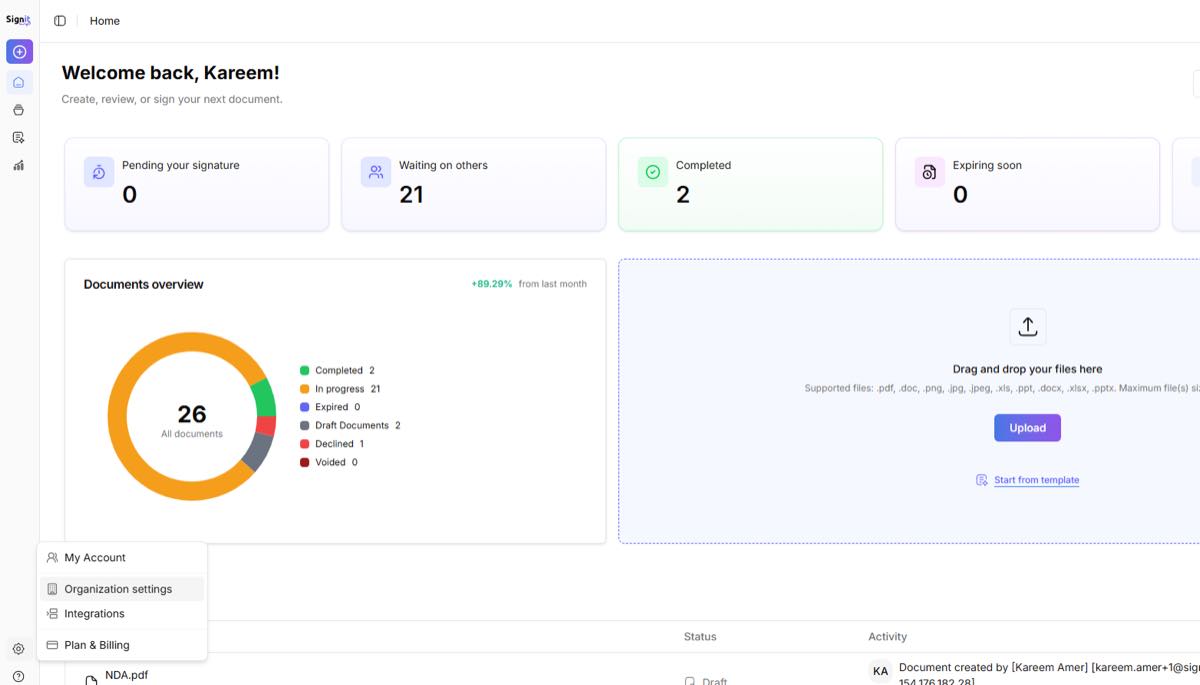
Step 1 of 5From the Signit dashboard, click the gear icon or the bottom-left sidebar menu, then select Organization settings and choose Org. email branding.
Step 2: Access and activate email branding
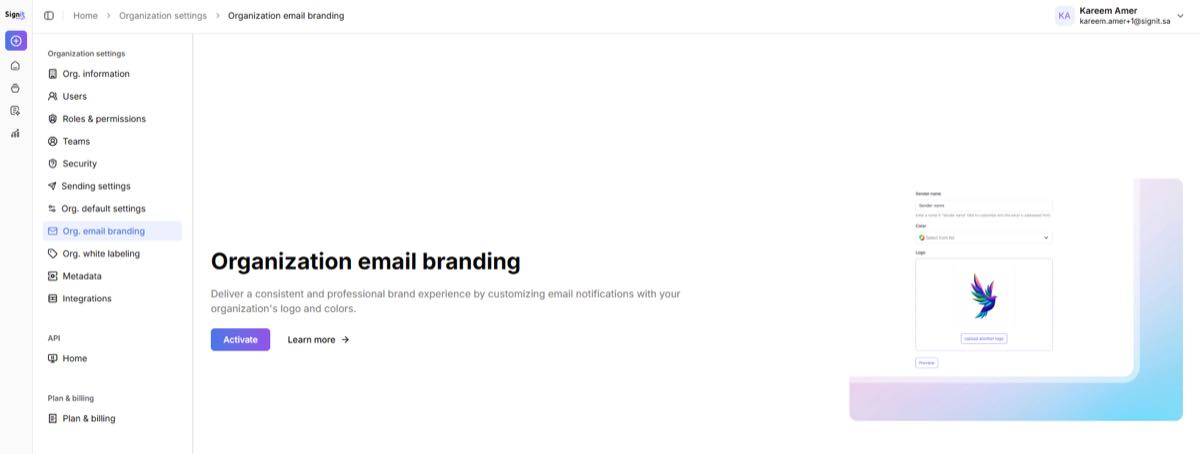
Step 2 of 5You'll land on the email branding setup page. Click Activate to begin customizing your organization's notification emails.
Step 3: Set up sender name, brand color, and logo
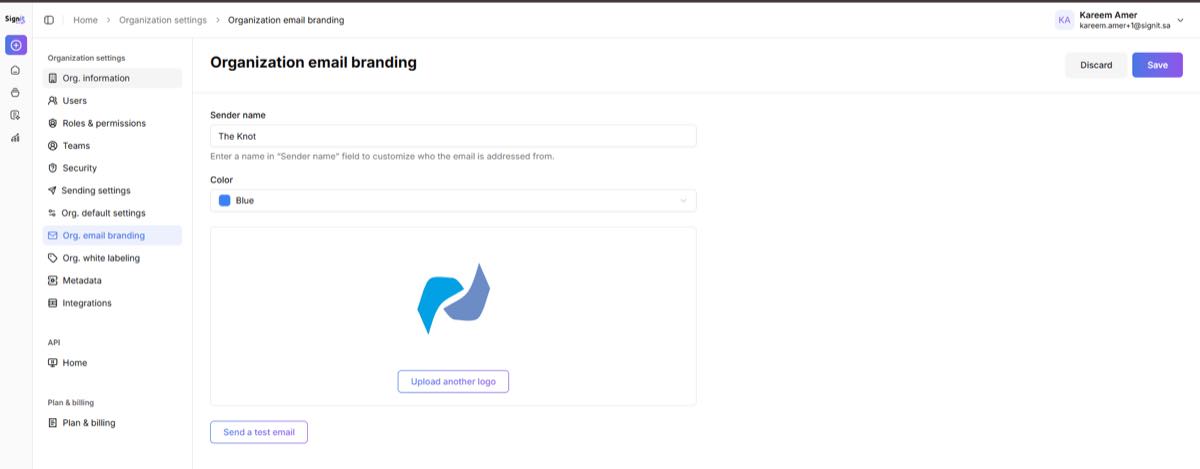
Step 3 of 5Configure your sender identity:
- Sender name — enter your organization sender name (for example, “The Knot”). It appears on all outgoing emails.
- Brand color — select or enter your brand's primary color using the color selector or a custom HEX code.
- Logo — upload your organization's logo via “Upload another logo.” It appears at the top of every email notification sent through Signit.
Step 4: Preview and send a test email
Step 4 of 5Use the Send a test email button to check how your customized branding appears in real notifications before enabling it for all users.
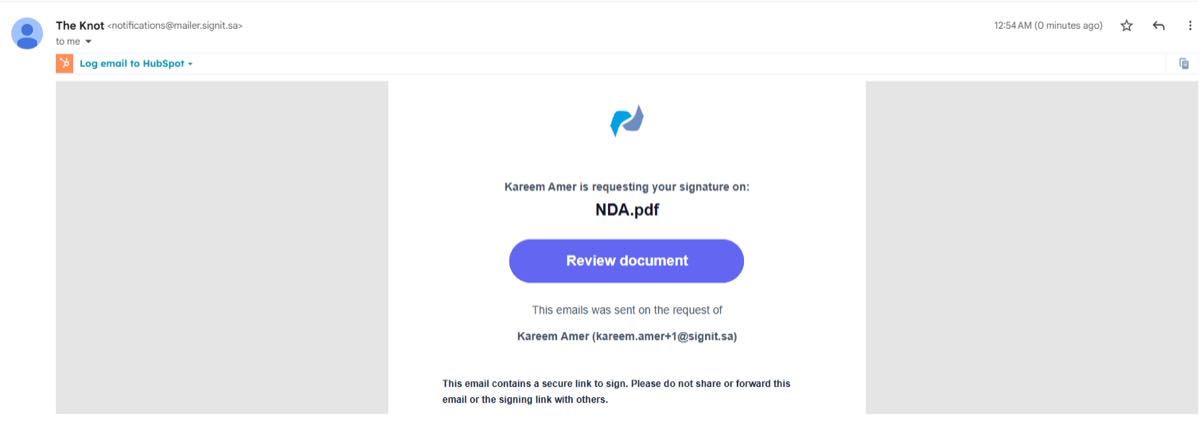
Step 5: Branded email example
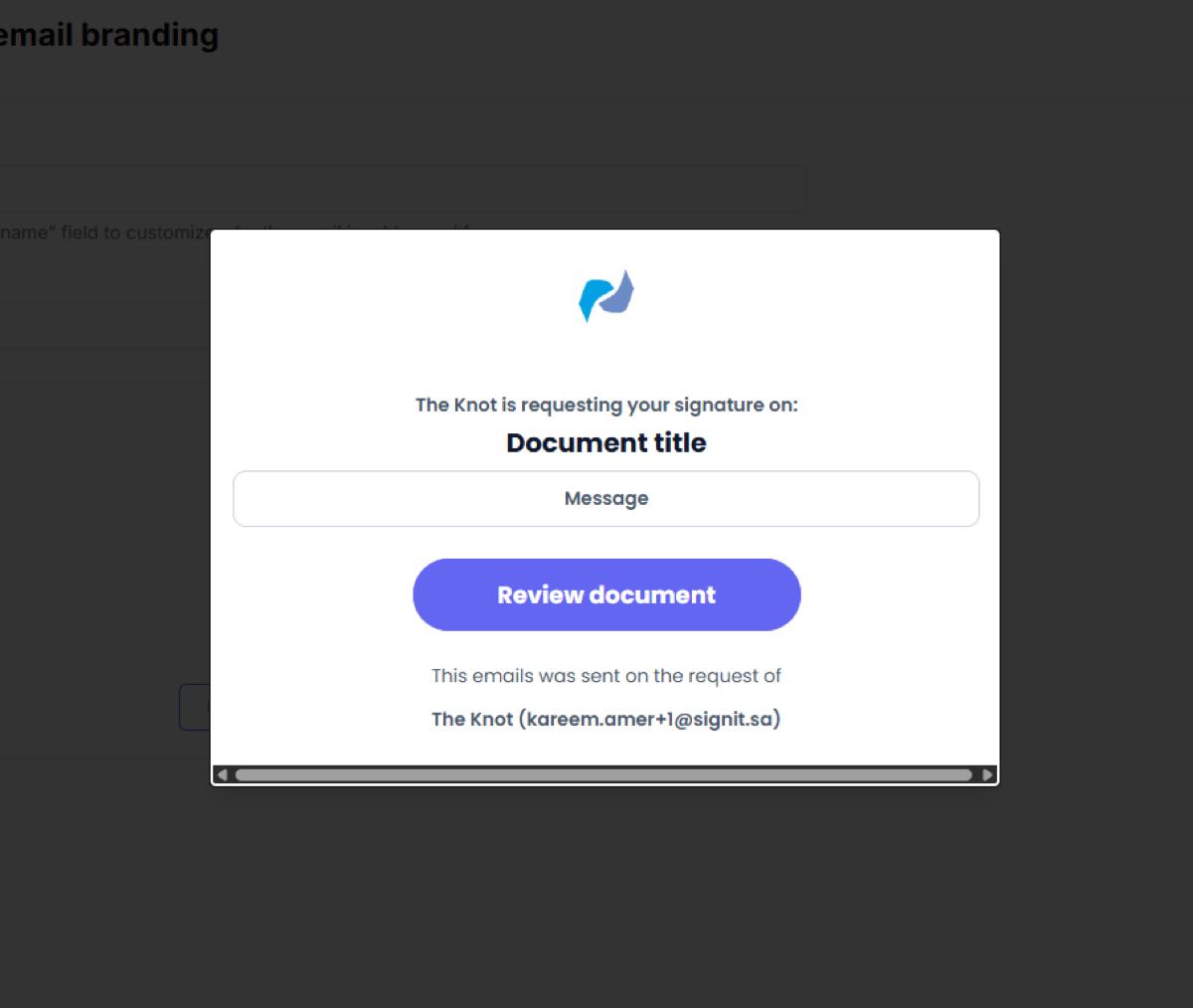
Step 5 of 5Here's an example of a branded notification as your recipients see it — it includes your logo, sender name, selected colors, and a direct call to action.
Need help?
If you encounter any issues during setup, contact the Signit support team.
Signit support team
Reach out for setup assistance — or contact your dedicated account manager for urgent issues.
Was this article helpful?