Before you start
Collaboration works best on an editable document. When you upload a Word file, Signit asks “Want to edit your file?” — choose Make it editable so the text becomes fully editable and suggestions can be tracked. Comments, chat, and sharing work on any document; tracked suggestions need an editable one.
1. Choose how you edit: Editing, Suggesting, Viewing
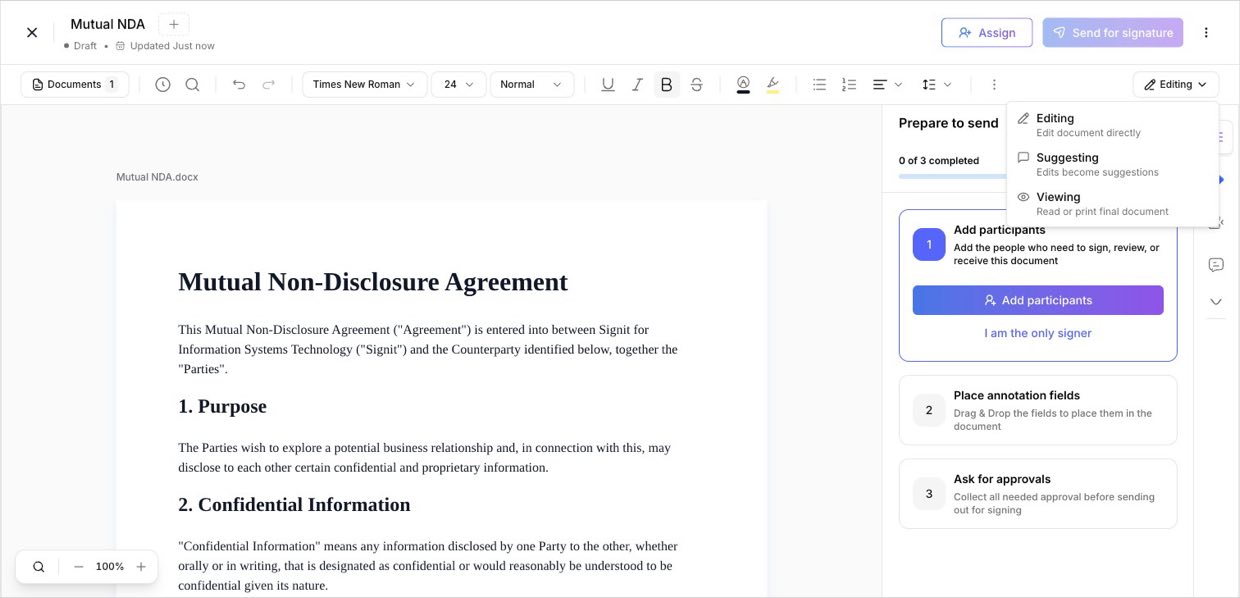
Top-right mode menuThe mode selector at the top-right of the editor controls what your edits do:
- Editing — edit the document directly; changes are applied straight away.
- Suggesting — every edit becomes a tracked suggestion instead of a direct change (like track changes in Word).
- Viewing — read or print the final document without changing anything.
2. Make suggestions, and accept or reject them
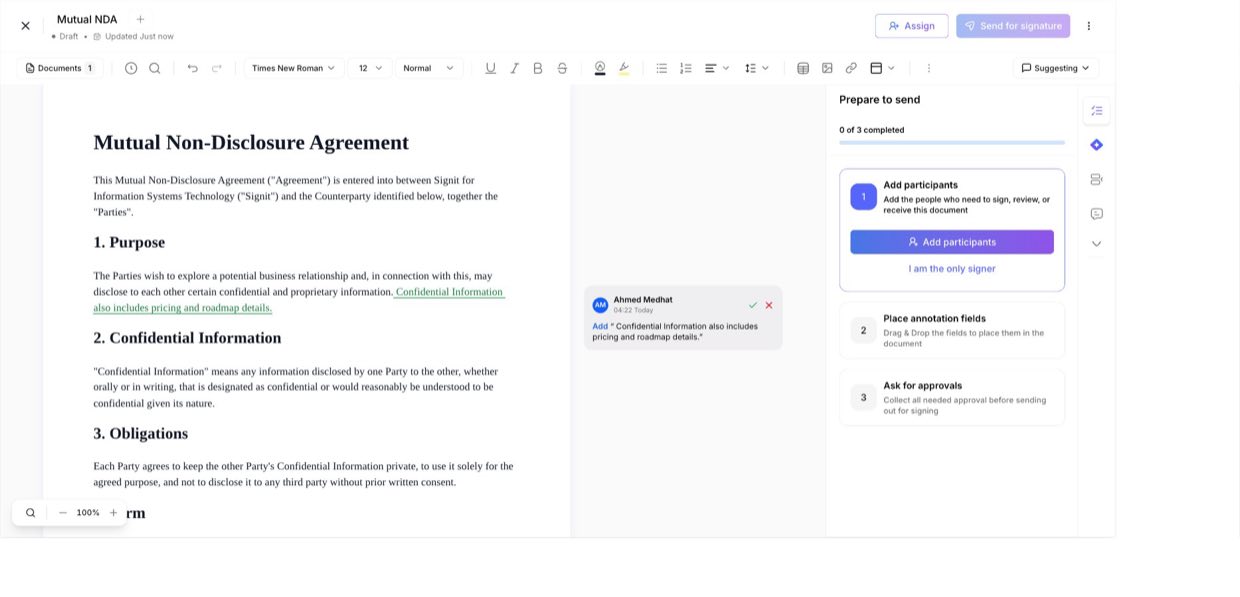
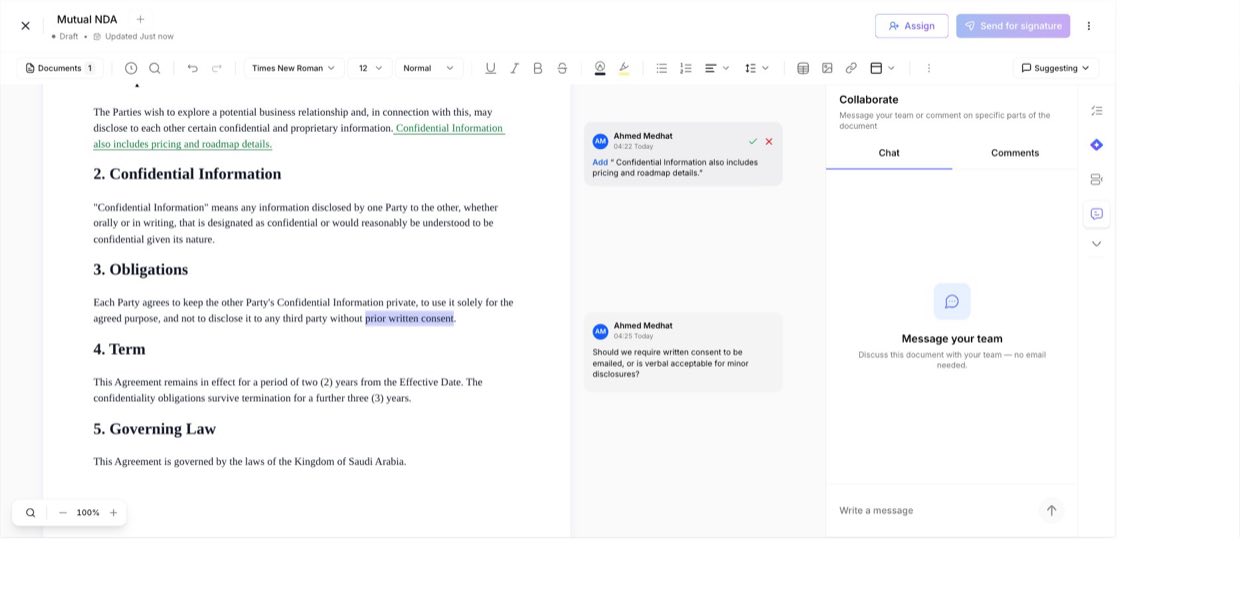
Track-changes reviewIn Suggesting mode, anything you add or delete shows as a colored, underlined suggestion attributed to you — the original text is never changed until someone decides. Each suggestion gets a card showing the change, with a ✓ accept and a ✗ reject button. Accept to fold the change into the document, or reject to discard it. It's the safe way to negotiate wording before signing.
3. Add a comment on any part of the document
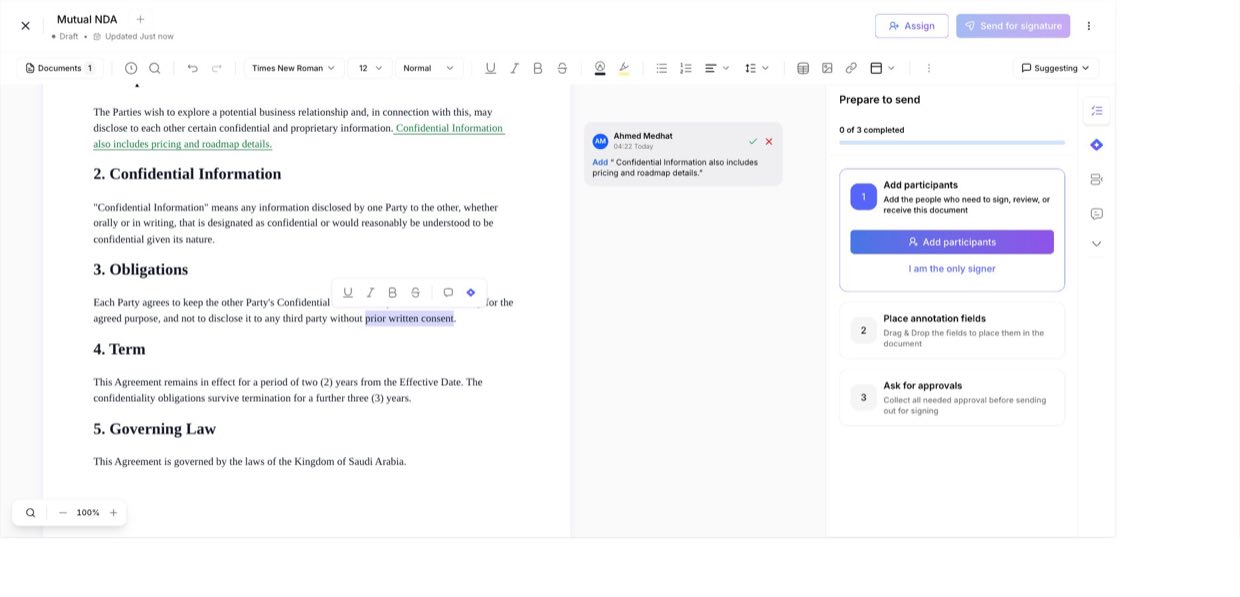
Select → commentSelect any text and a small toolbar appears above it. Click the comment icon (💬), type your note, and click Send. The commented text is highlighted, so anyone reading knows exactly which clause you mean — no more “paragraph 3, line 2” in an email.
4. Where comments and suggestions are stored
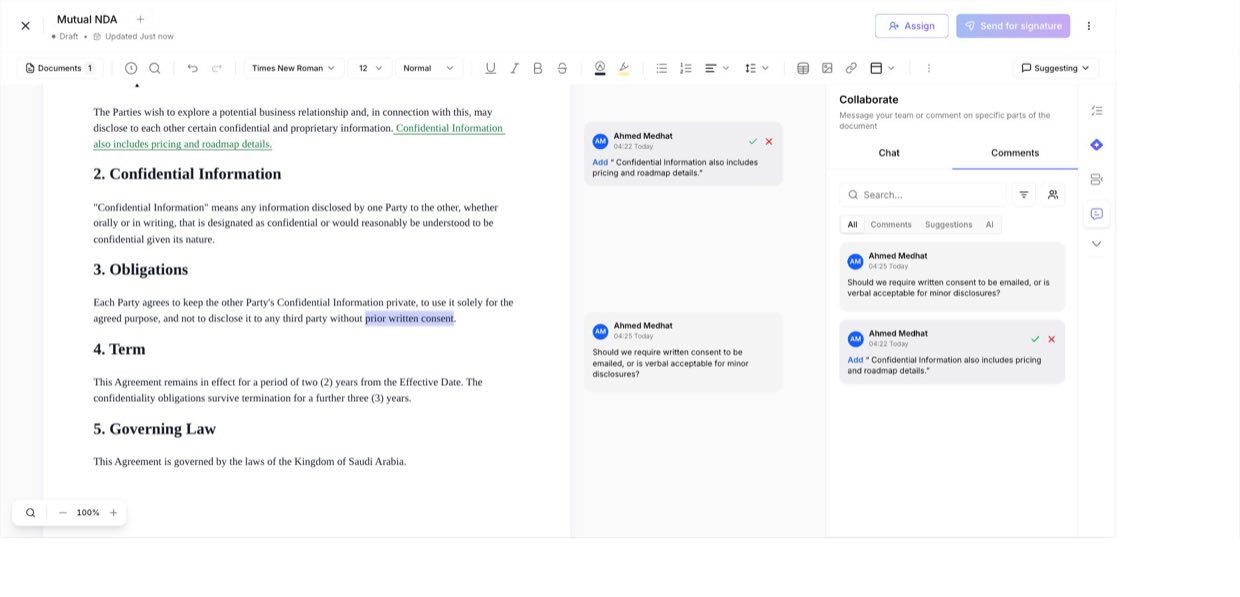
The Collaborate panelEvery comment and suggestion is collected in the Comments tab of the Collaborate panel on the right. From here you can read them all in one list, search, and filter by All / Comments / Suggestions / AI — and accept or reject suggestions right from the panel. Nothing gets lost in the document.
5. Chat with your collaborators
Two tabs: Chat & CommentsThe same Collaborate panel has two tabs. Comments are anchored to the text; Chat is a running conversation about the document as a whole — message your team without leaving Signit and without a single email. Great for quick “are we good to send?” checks.
6. Share the document with collaborators
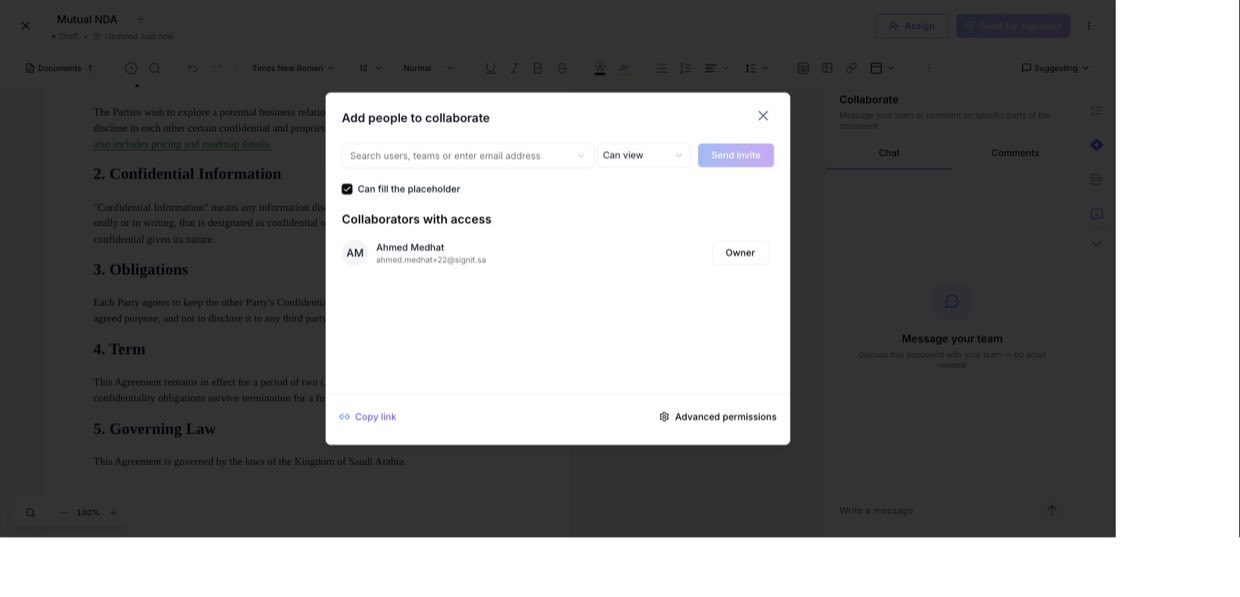
The ⋮ menu beside the buttonsClick the three-dots (⋮) menu next to Assign and Send for signature, then choose Share. Add people by name, team, or email and set what they can do — from view to fill placeholders to full editing. You can also Copy link or open Advanced permissions. Everyone you add appears under Collaborators with access.
Good to know
Suggestions keep the original text intact until someone accepts them — safe for contract negotiation.
Comments and chat are internal collaboration tools; they aren't shown to signers when the document goes out.
Sharing controls access for collaboration — it's separate from adding signers or sending for signature.
Need help?
Questions about collaborating on a document? The Signit support team is happy to help.
Signit support team
Reach out for help — or contact your dedicated account manager for urgent issues.
Was this article helpful?