The toolbar at a glance
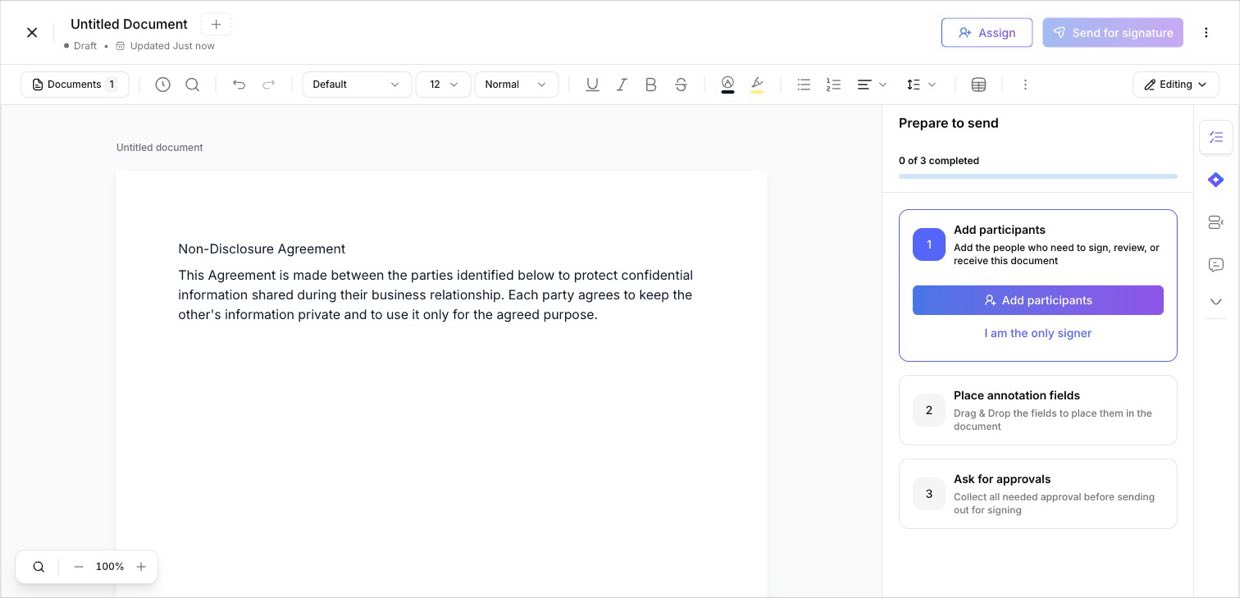
Open any document — blank, uploaded, or from a template — and the editor toolbar runs across the top. It's a genuine rich-text editor: everything you'd expect from a word processor, plus the things that matter for contracts. Reading left to right, the toolbar groups into:
- Navigate & history — jump between documents and pages, open version history, and search within the document.
- Undo / redo — step back and forward through your changes.
- Text formatting — font family, size, block type, bold/italic/underline/strikethrough, colour, and highlight.
- Structure — bullet and numbered lists, alignment, line spacing, and tables.
- Insert & more — images, links, text direction, and other tools under the “more” menu.
- Editing / Preview — flip between editing the document and previewing it exactly as a signer will see it.
1. Format your text
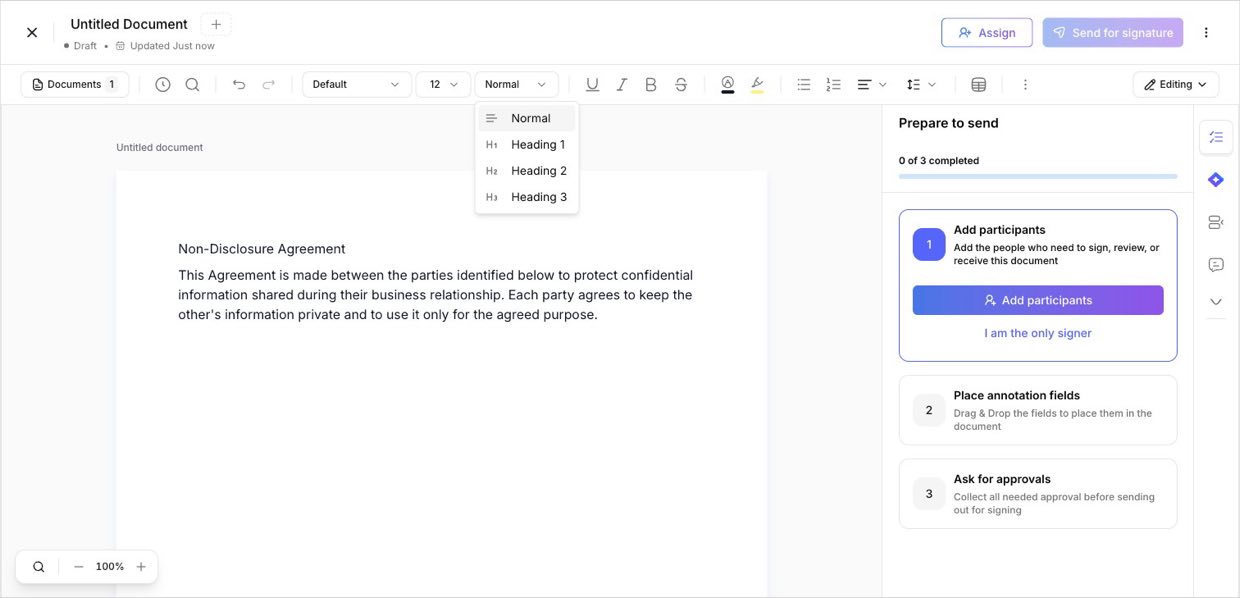
Fonts, headings & stylesSelect any text and style it just like in a word processor:
- Font family and font size — pick the typeface and size.
- Block type — turn a line into Heading 1, 2, or 3 or back to Normal body text, so long contracts get a clear structure.
- Bold, Italic, Underline, Strikethrough — the essentials, one click each.
- Text colour and Highlight — draw attention to a clause or mark something for review.
2. Structure your content
Lists, alignment & spacingShape how the document reads:
- Bullet and numbered lists — for clauses, terms, and steps.
- Text alignment — left, right, centre, or justify (right-align matters for Arabic).
- Line & paragraph spacing — open up dense text for readability.
These are live edits on the real document — what you format is exactly what the signer receives.
3. Insert tables, images, and links
Rich contentGo beyond plain text:
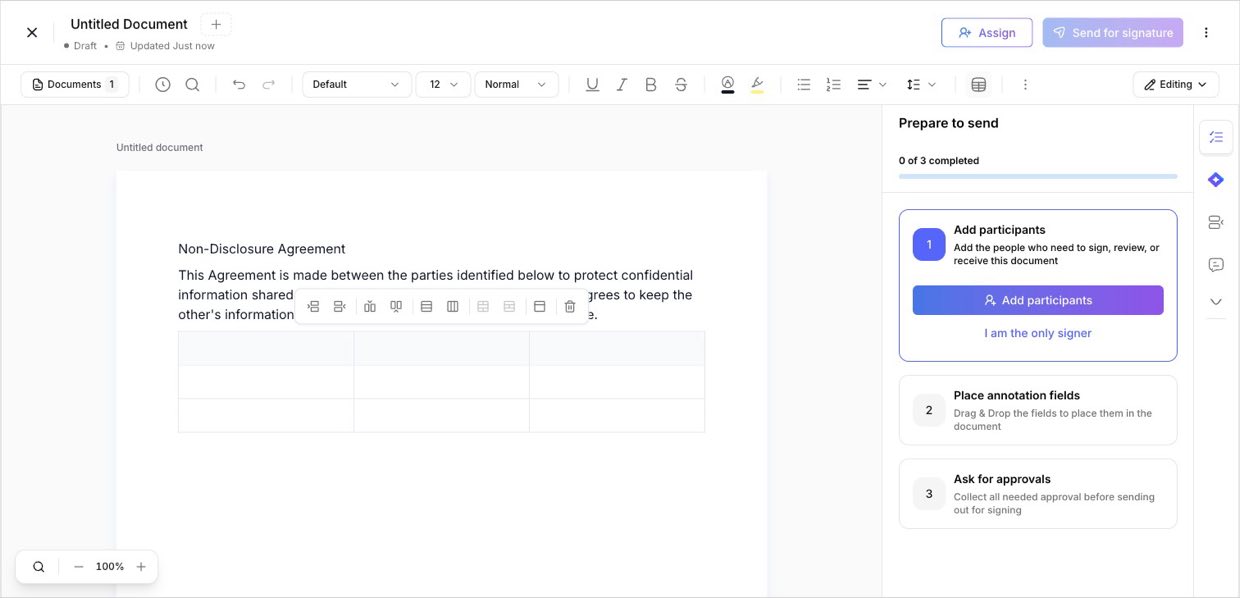
- Insert table — drop in a table for fee schedules, deliverables, or signatory blocks. Once it's in, a table toolbar lets you add or remove rows and columns, merge cells, and delete the table.
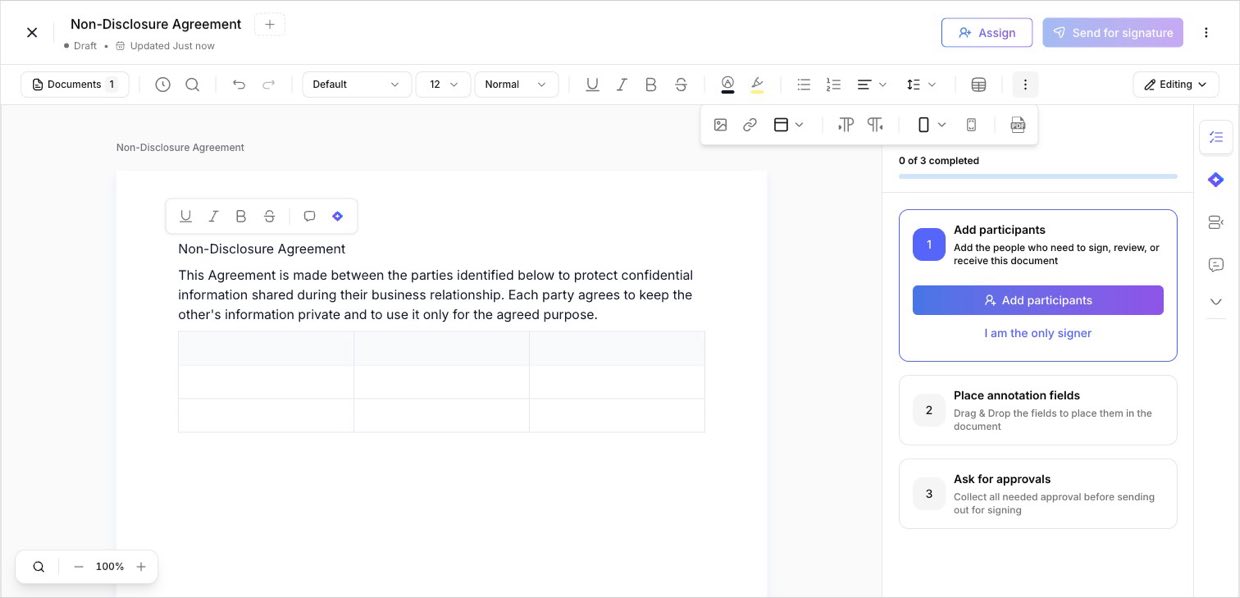
- Insert image — add a logo, diagram, or exhibit directly into the document.
- Insert link — link out to policies, terms, or reference material.
- Text direction — switch a block between left-to-right and right-to-left, so you can mix Arabic and English cleanly in one contract.
4. Work faster
ProductivityA few tools make longer edits painless:
- Selection toolbar — select text and a floating toolbar appears with quick formatting, a comment, and an AI action right where you're working.
- Version history — see earlier versions and roll back if needed.
- Search document — jump straight to a word or clause in a long agreement.
- Editing / Preview — switch to Preview to see the document exactly as the signer will, then back to Editing.
- AI assistant — draft or refine wording from the side panel without leaving the editor.
Why it's powerful
It's a real word processor inside Signit — you rarely need to go back to Word and re-upload.
Every change is on the actual document that gets signed, so what you see is what the signer gets.
Right-to-left support and per-block direction make bilingual Arabic/English contracts clean and correct.
Editing, fields, approvals, and sending all live in one screen — draft to dispatch without switching tools.
Need help?
Want a walkthrough of the editor? The Signit support team is happy to help.
Signit support team
Reach out for help — or contact your dedicated account manager for urgent issues.
Was this article helpful?