Adding team members
From Organization settings you can invite teammates to your company account, each using one of your available user licenses. Invited members get their own login, plus the role and permissions you assign.
Step 1: Open Users in Organization settings
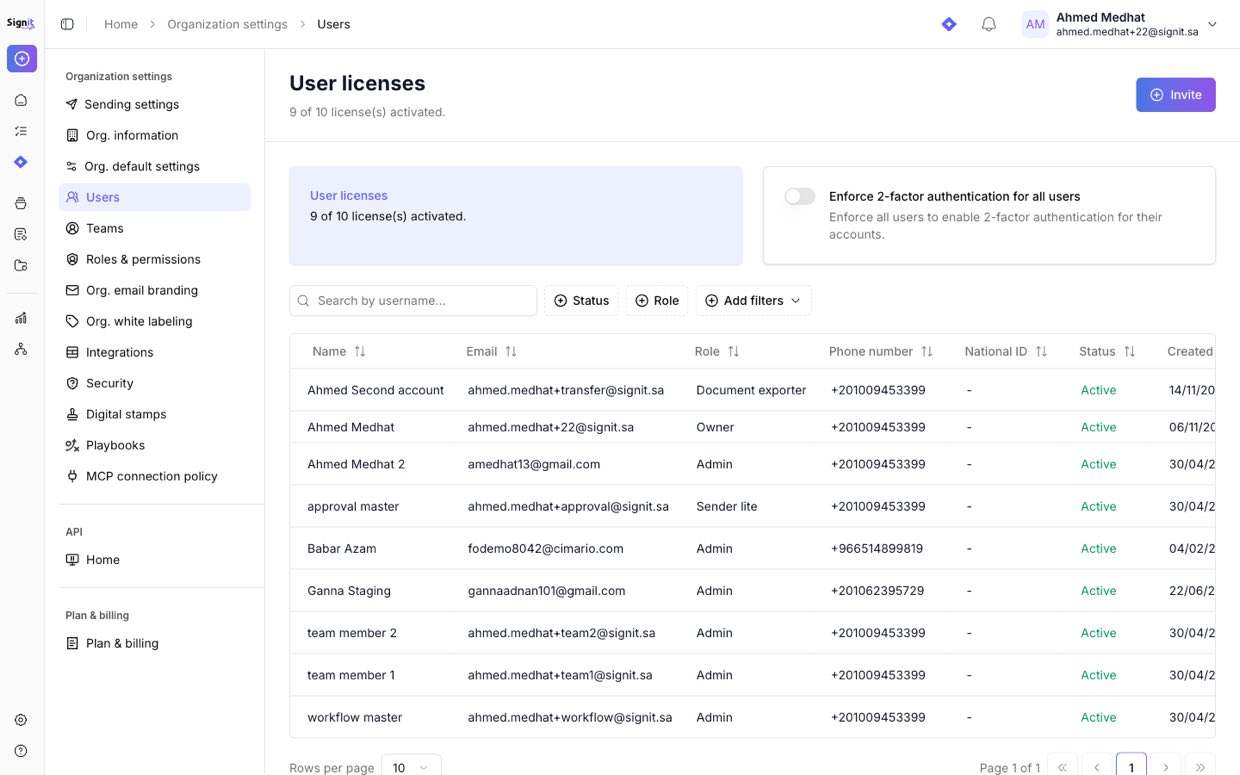
Step 1 of 3Click Settings (bottom-left) → Organization settings, then open Users. This page shows how many of your user licenses are active.
Step 2: Send an invitation
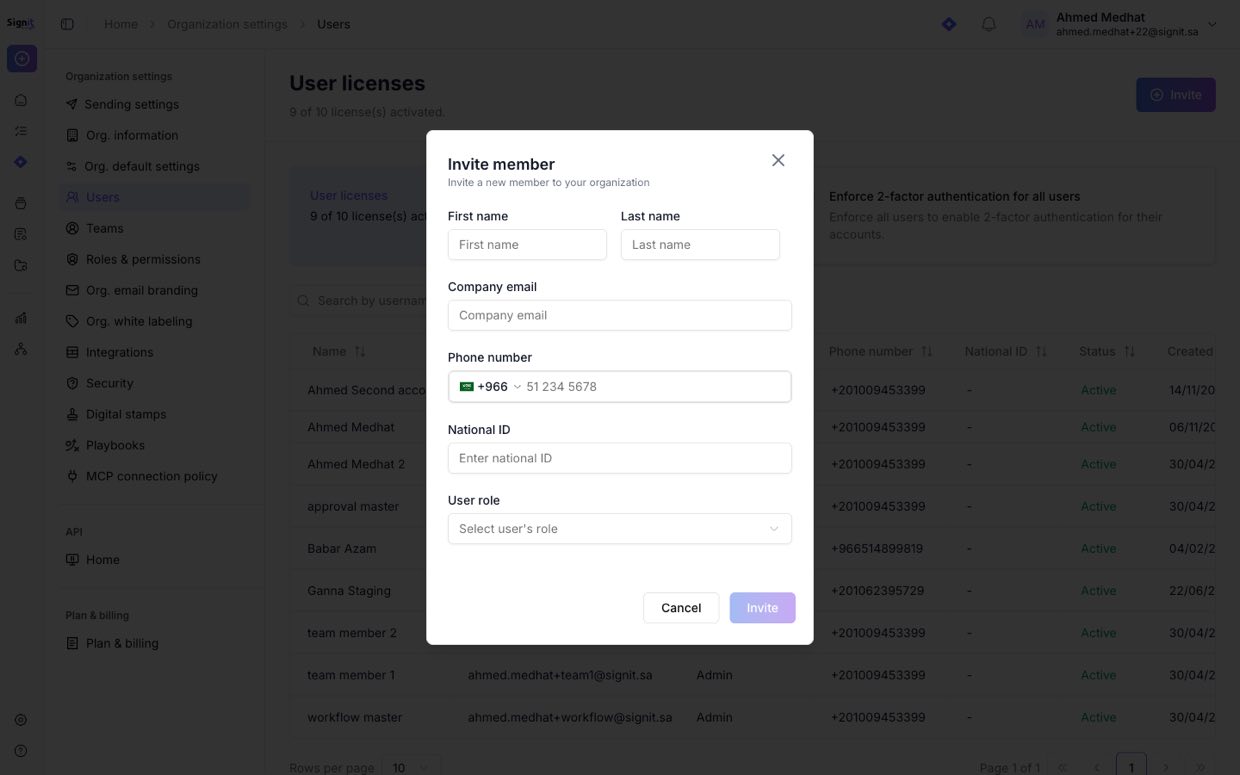
Step 2 of 3Click Invite, then fill in the member's first and last name, company email, phone number, and National ID.
Step 3: Assign a role and invite
Step 3 of 3Choose the member's user role to set their permissions, then click Invite. They'll receive an email to activate their account and join your organization, and the seat counts against your license total.
Need help?
If you get stuck at any step, contact the Signit support team.
Signit support team
Reach out for help — or contact your dedicated account manager for urgent issues.
Was this article helpful?