Setting up your signature
Your saved signature lives in your account and is applied whenever you sign. You can draw it, type it, or upload an image, then set it as your default for faster signing.
Step 1: Open My signatures
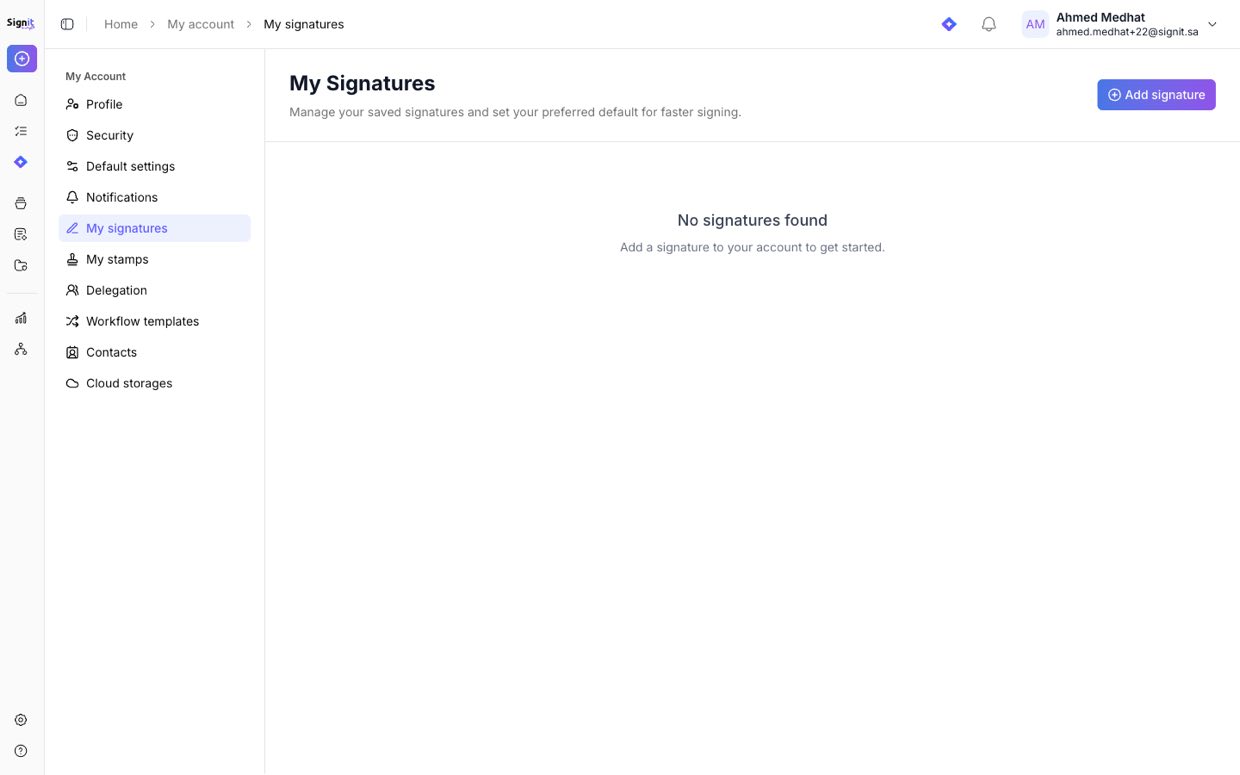
Step 1 of 3Click Settings → My Account, then open My signatures.
Step 2: Add a signature
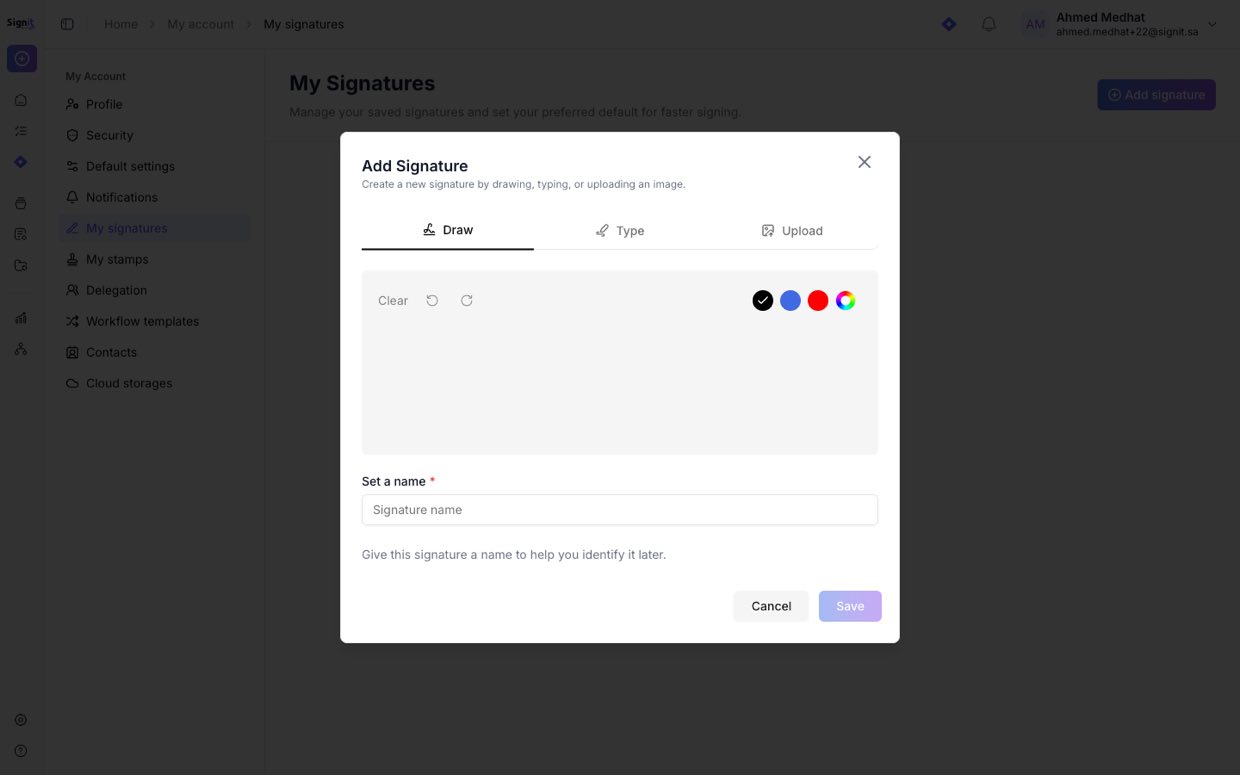
Step 2 of 3Click Add signature, then create it one of three ways: Draw it with your mouse or trackpad, Type it and pick a style, or Upload an image of your signature.
Step 3: Name and save
Step 3 of 3Give the signature a name so you can recognize it later, then click Save. Set it as your default and it'll be ready the next time you sign.
Need help?
If you get stuck at any step, contact the Signit support team.
Signit support team
Reach out for help — or contact your dedicated account manager for urgent issues.
Was this article helpful?