What is bulk signing?
Bulk signing is for when many documents are waiting on your signature — you handle the whole batch in one pass instead of opening each one. You verify your identity once, fill repeated fields (like your name and title) once for all, and sign everything together. An optional AI pre-sign check reads each document and flags what deserves a closer look first — you always make the final call.
Before you start:
- Bulk signing is on your organization's plan and switched on for your organization.
- You hold the Sender permission.
- (Optional) The AI pre-sign check is enabled for your organization.
Step 1: Select your batch
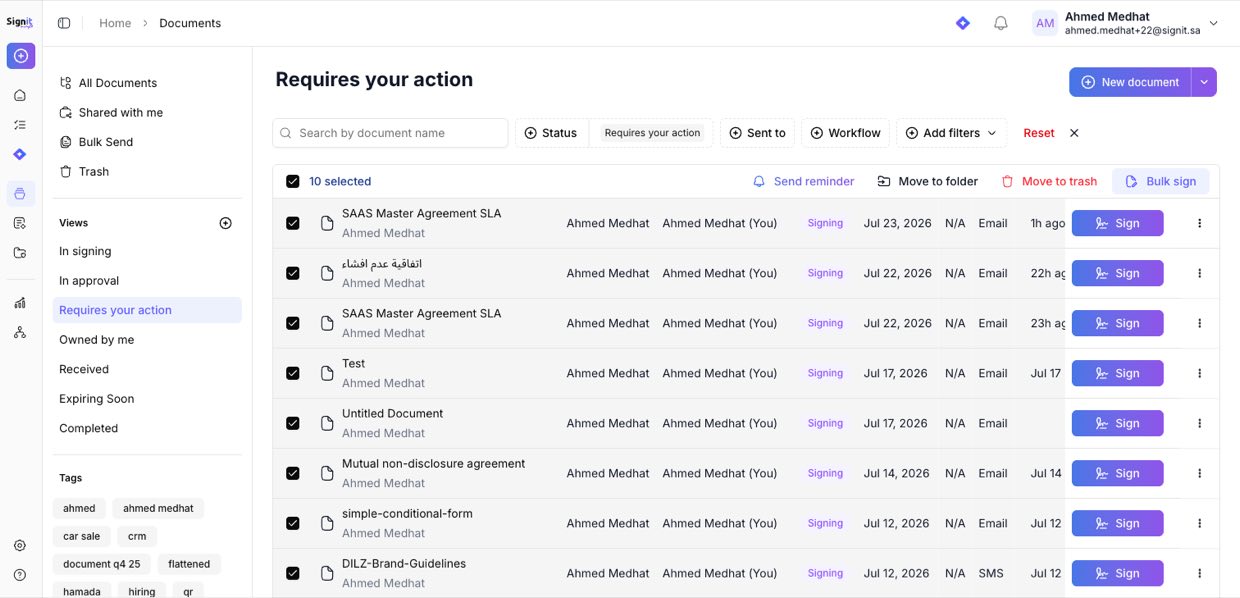
Step 1 of 4Open Documents → Requires your action (the documents waiting on you to sign). Tick the ones you want to handle together, then click Bulk sign.
Step 2: Review the documents
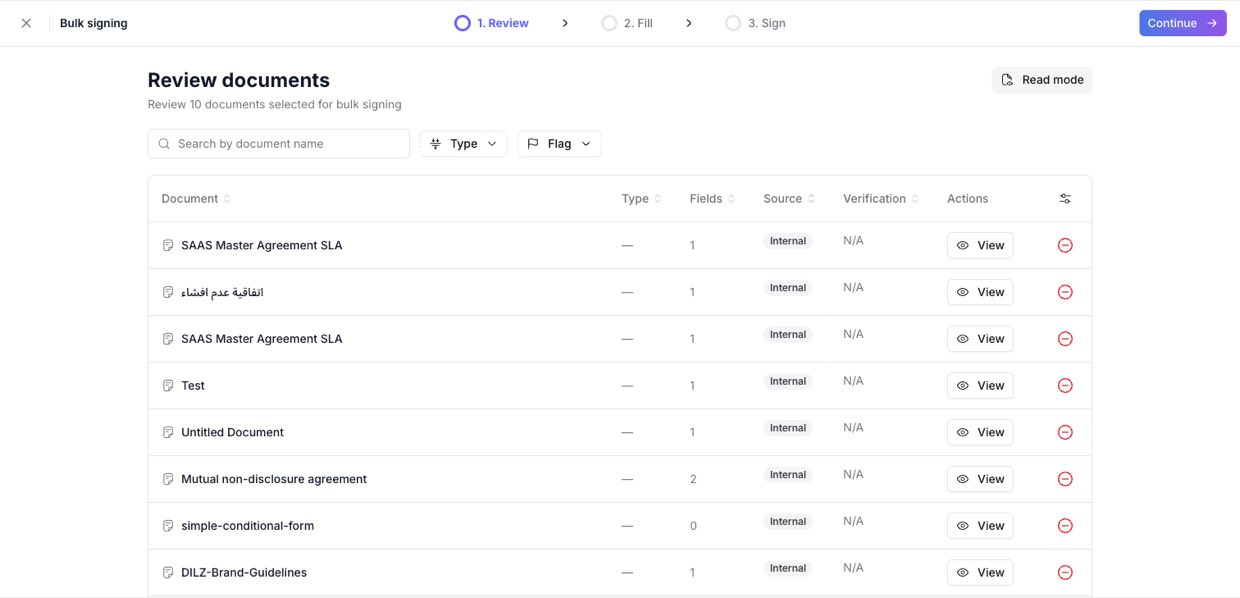
Step 2 of 4The Review step lists every document in the batch. If your documents require identity verification (Nafath, Absher, or a one-time code), you verify once per method and it covers the whole batch. If the AI pre-sign check is on, each document is badged High, Medium, or Low — use the Flag filter to surface them and open anything High or Medium first. The AI reads each document and flags risks under Saudi law; you make the final call on every one.
Step 3: Fill shared fields once
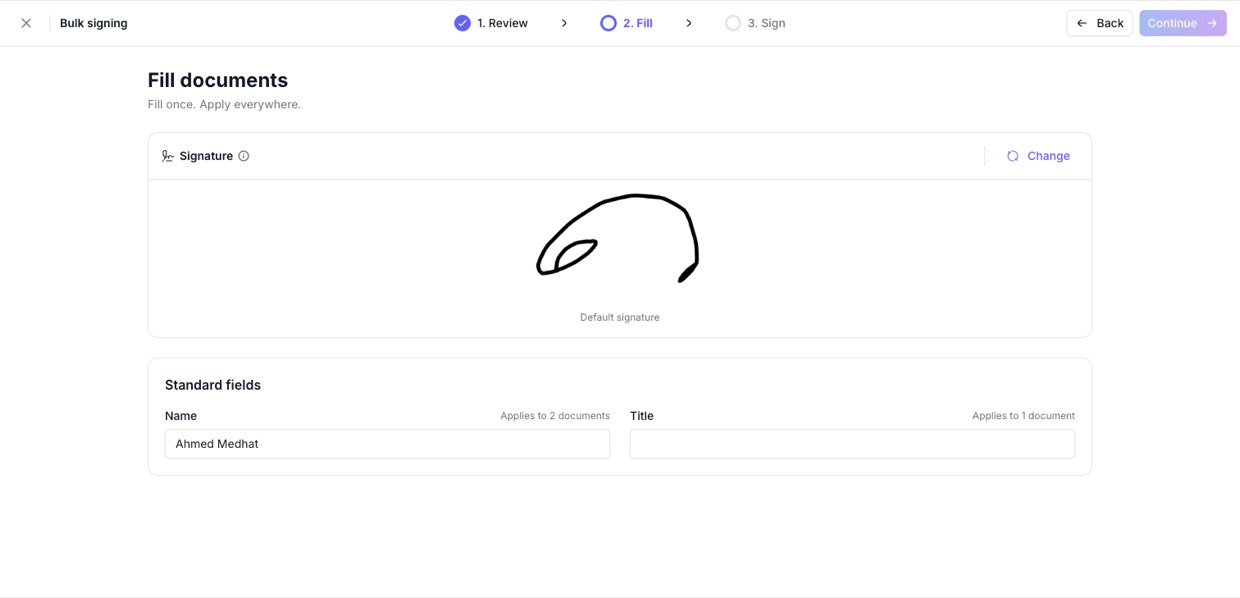
Step 3 of 4On the Fill step, set your signature and any repeated fields — name, title, date. Each field shows how many documents it applies to, so you fill it once and it's applied across the batch (Arabic labels are recognized too).
Step 4: Sign the batch
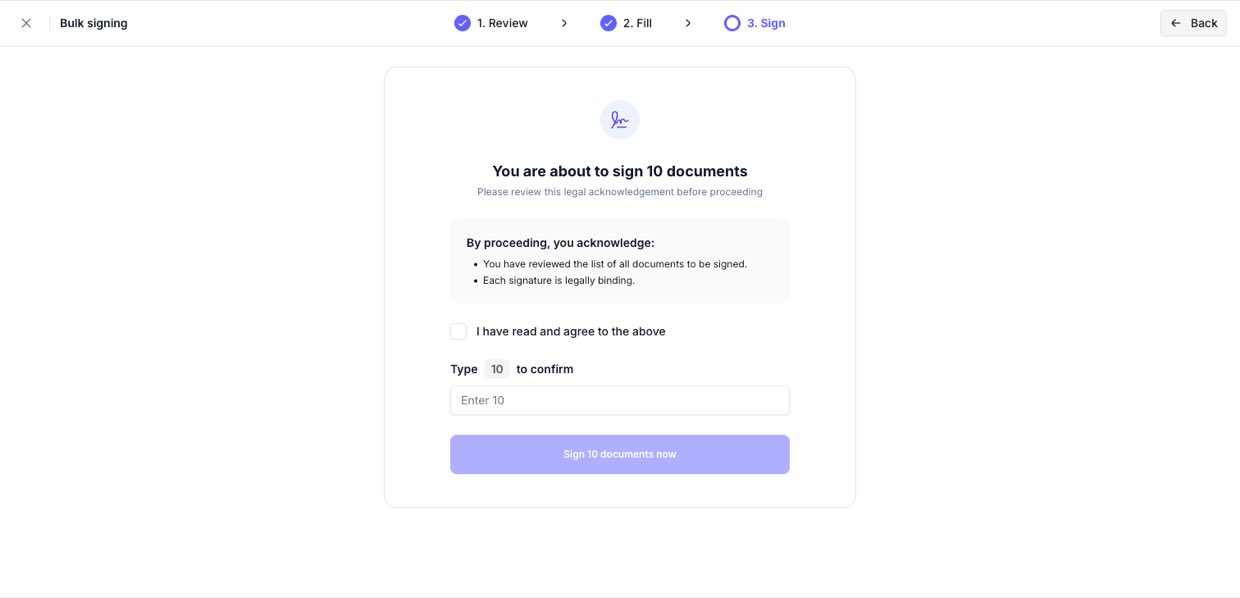
Step 4 of 4On the Sign step, review the legal acknowledgement, confirm, and click Sign … documents now. Every document is sealed with a full audit trail, legally binding under Saudi law, and its status is updated together — so the batch completes consistently.
Need help?
If bulk signing isn't showing, check the prerequisites above or contact the Signit support team.
Signit support team
Reach out for help — or contact your dedicated account manager for urgent issues.
Was this article helpful?